The Dashboard is the first thing you see after signing in. It lists every merchant you have access to, along with key metrics that help you quickly spot any issues.
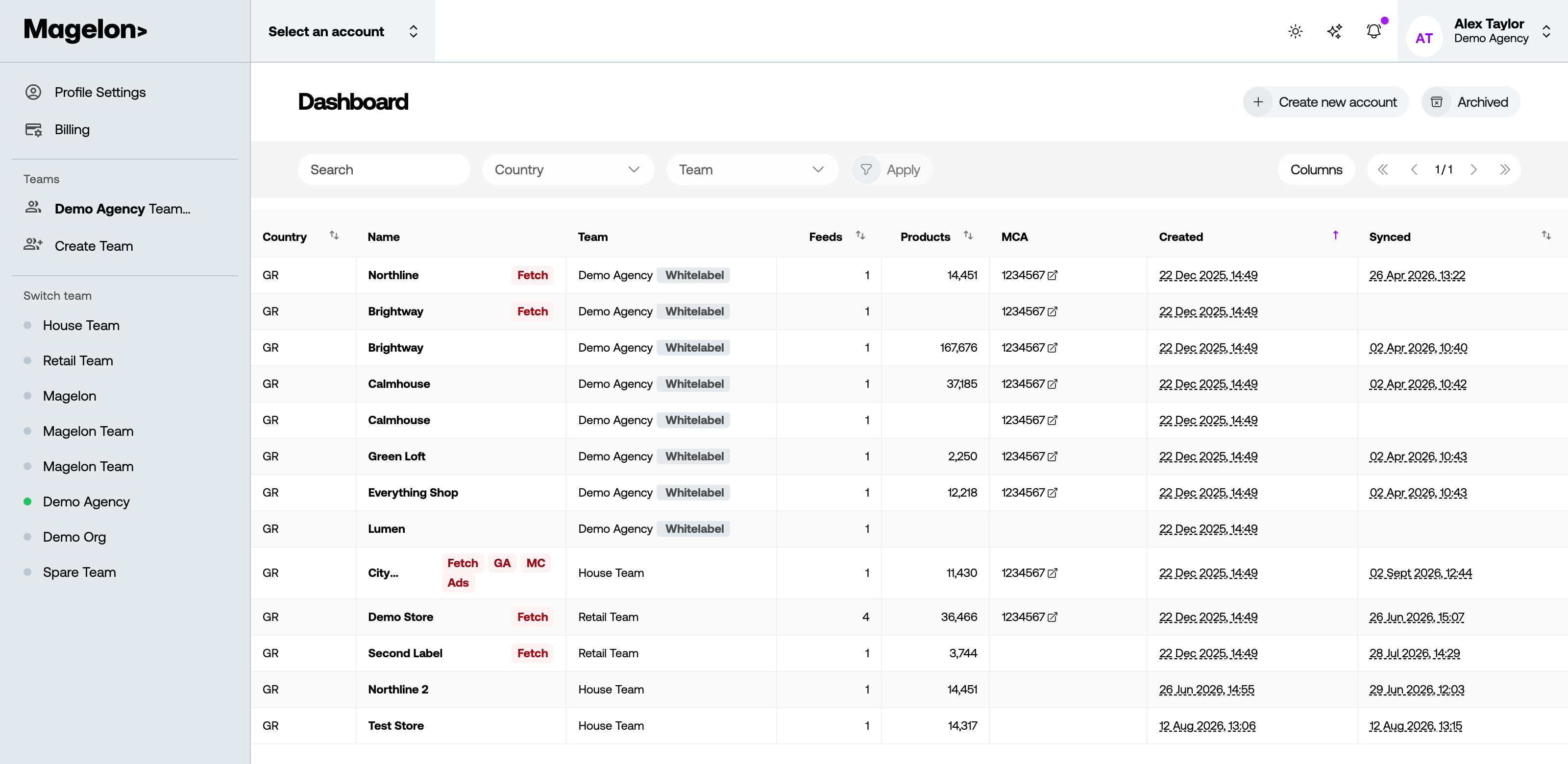
What the columns mean
| Column | What it tells you |
|---|---|
| Country | The country of sale set on the merchant. |
| Name | The merchant’s name. Badges next to it show what is connected — Fetch, GA, MC, Ads. |
| Team | The team the merchant belongs to. See How teams work. |
| Feeds | How many feeds are attached. |
| Products | How many products Magelon currently holds. An empty cell means nothing has imported yet. |
| MCA | The linked Google Merchant Center account, if there is one. Clicking it opens Merchant Center. |
| Created | When the merchant was added to Magelon. |
| Synced | When its feed last imported successfully. This is the column to watch. |
The Synced column is your early warningIf the last sync was more than about 4 hours ago, the merchant may be using outdated product data, even if everything else in the row looks normal. For troubleshooting steps, see My feed is not updating.
Opening a merchant
Click a merchant’s name to open it. You can also switch between merchants at any time using the account selector in the top left, without returning to the Dashboard.
From the Dashboard you can also create a new merchant and open the archive of deleted ones, using the buttons at the top right.