Connecting Google Merchant Center allows Magelon to show product-level performance data and identify product disapprovals.
Connecting a Google service involves two steps. First you need to connect your own Google account in your profile, which gives Magelon permission to read on your behalf. Then, in the merchant’s settings, you choose which account, property or ID belongs to that merchant.
A connected Merchant Center account is also required to use Magelon CSS with Shopping and Performance Max campaigns.
Start the connection
Open the merchant, select Settings from the bottom of the left menu, and go to the Google Services tab. Under Google Merchant Center there are two options:
- You do not have a Merchant Center account yet. Click Create a Merchant Center Account. Magelon creates one and fills in its ID for you. That is the whole job.
- You already have one. Click Link a Google account for Merchant Center. You will be taken to your profile to connect the Google account that has access to your Merchant Center.

Grant access
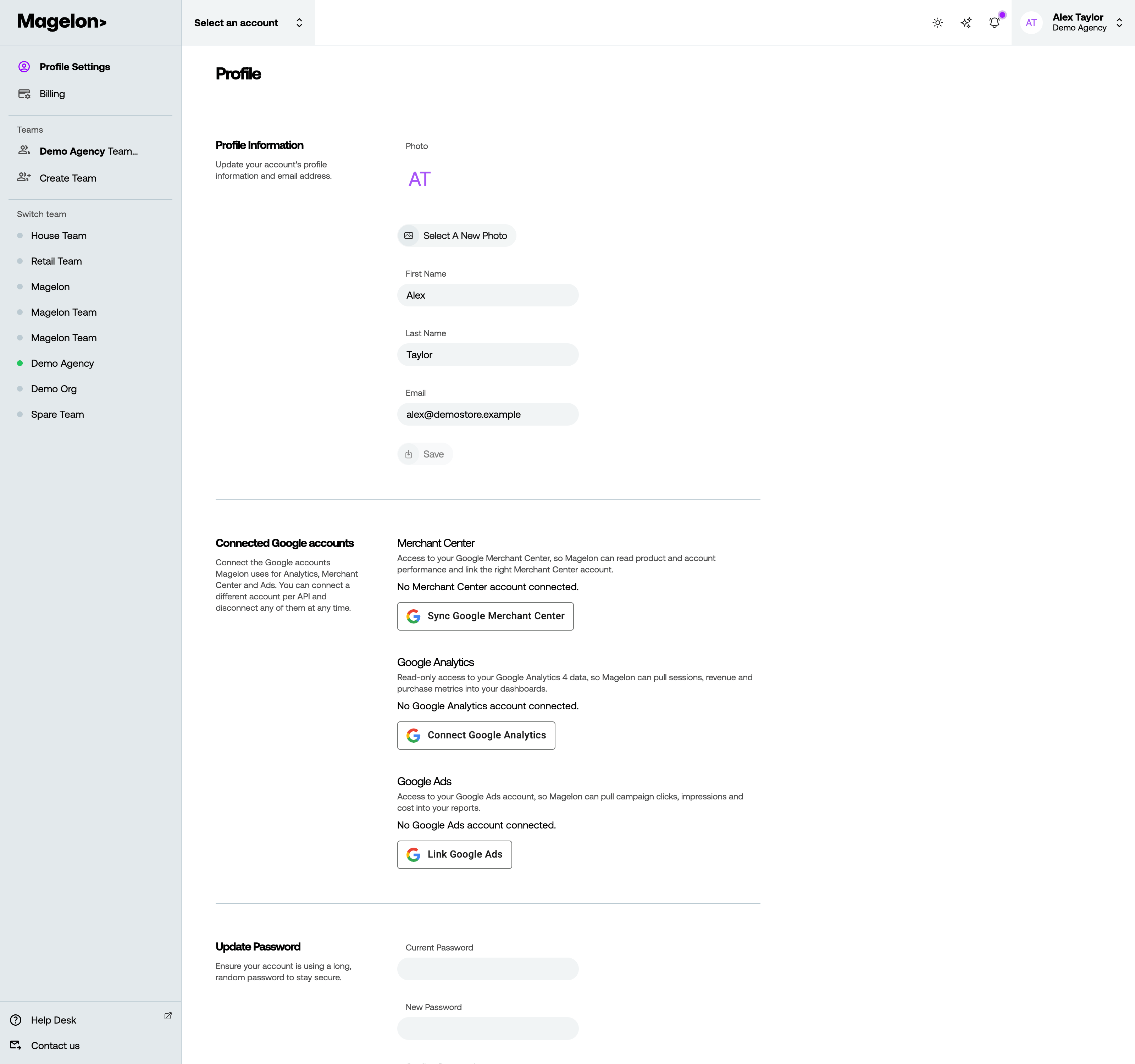
In Profile Settings, under Connected Google accounts, click Sync Google Merchant Center and sign in with the Google account that has access to the merchant’s Merchant Center.
Google asks what Magelon may do. Make sure Manage your product listings and accounts for Google Shopping is checked, then click Continue.

Go back to the merchant’s Settings → Google Services, choose the Google account you just connected, pick the Merchant Center account from the list, and click Save.


What you get
- The Merchant Center ID shows at the top right of every page of the merchant; clicking it opens Merchant Center.
- The Overview shows how many products Google holds as active, limited, pending and disapproved.
- Clicks, impressions and CTR per product become available as columns and as filters, so segments can be built on performance.
- The Disapproved (Google MCA) tab under Exclusions lists Google’s disapproval reasons. See Products disapproved in Merchant Center.