Connecting Google Analytics 4 (GA4) allows you to create segments based on sales and product performance data, including revenue, quantity sold, and the steps from product view to purchase.
Connecting a Google service involves two steps. First you need to connect your own Google account in your profile, which gives Magelon permission to read on your behalf. Then, in the merchant’s settings, you choose which account, property or ID belongs to that merchant.
Start the connection
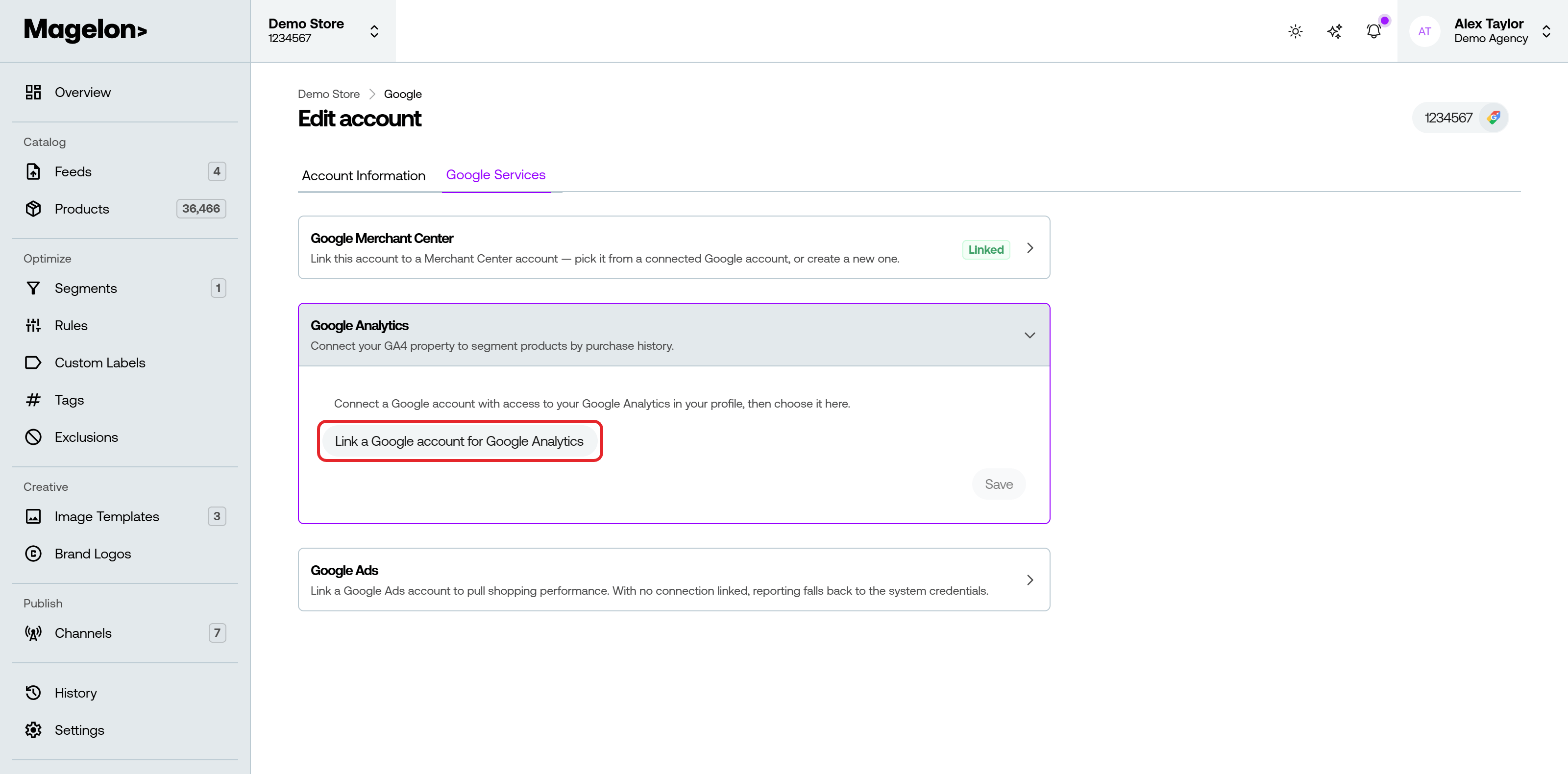
Open the merchant, choose Settings and go to the Google Services tab. Under Google Analytics, click Link a Google account for Google Analytics. You are taken to your profile.
Grant access
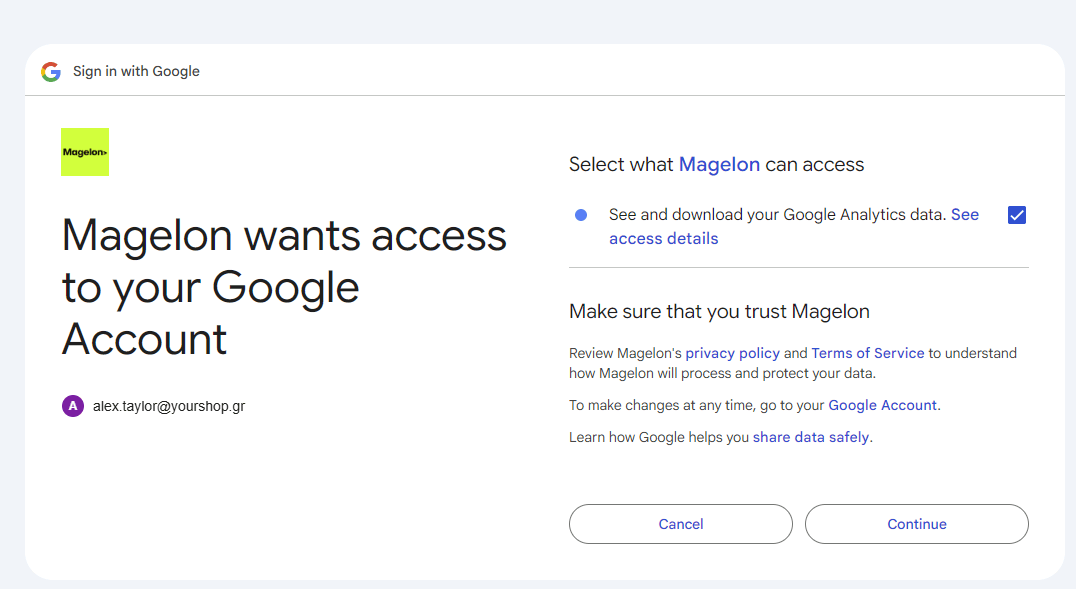
Under Connected Google accounts, click Connect Google Analytics and sign in with the Google account that has access to the merchant’s GA4 property. Magelon asks for read-only access.

When Google asks what Magelon may do, make sure See and download your Google Analytics data is checked, then click Continue.
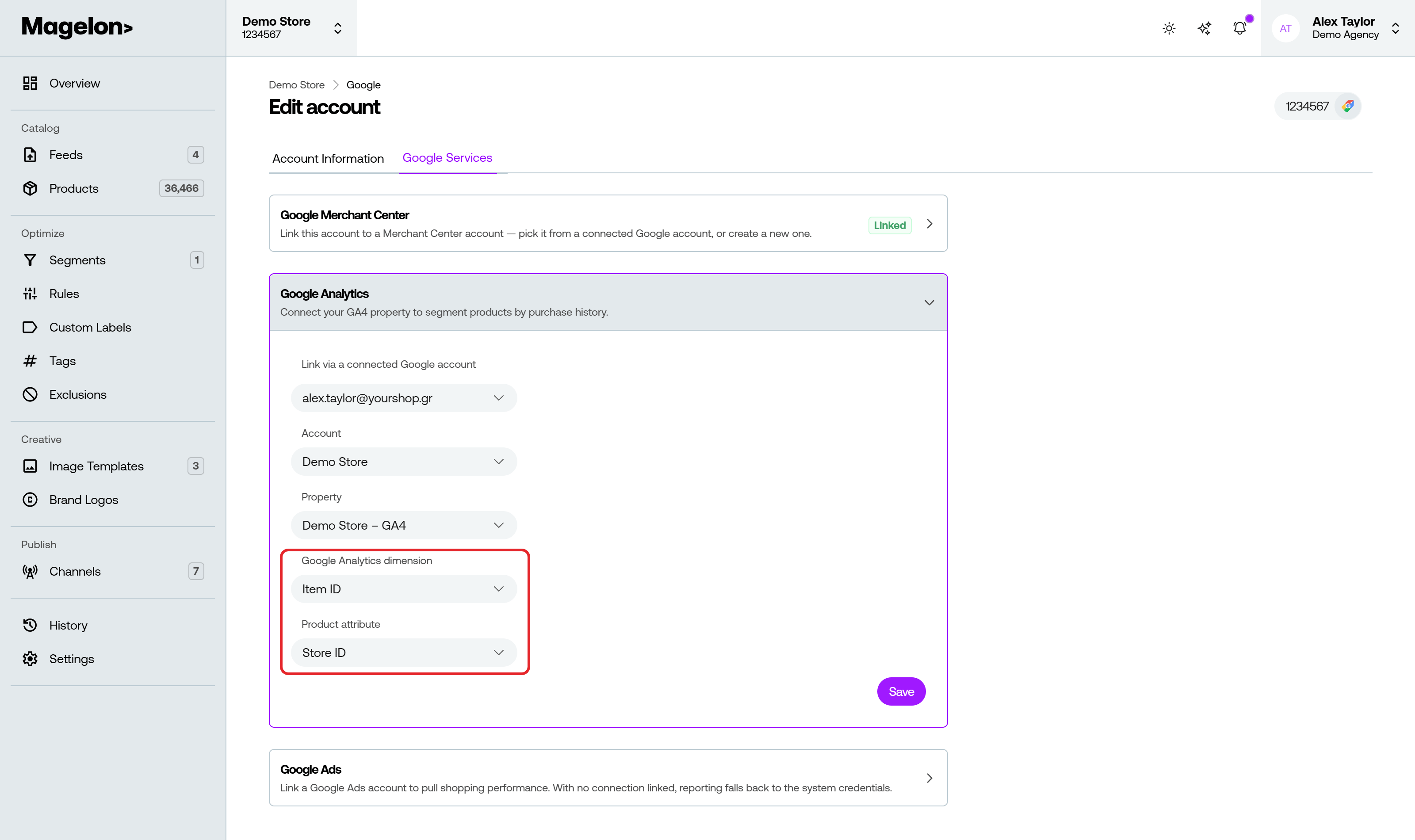
Return to the merchant’s Settings → Google Services and select the GA4 Account and Property.

Then match the product IDs:
| Setting | Choose |
|---|---|
| Google Analytics dimension | Item ID |
| Product attribute | Store ID |
This step matters most. It tells Magelon how to match the products in your Analytics reports with the products in your feed. If the product IDs do not match, Magelon cannot associate the sales data with the correct products. Click Save.
Segments based on purchases
Once connected, the Google Analytics metrics — Revenue, Quantity, Viewed, Added to Cart and the cart-to-view and purchase-to-view ratios — are available as filters and as columns on the Products page, over periods from 7 to 90 days.
That is what makes performance segments possible: best sellers, products that are viewed but never bought, products that sell well once added to the cart. See Segment use cases.